

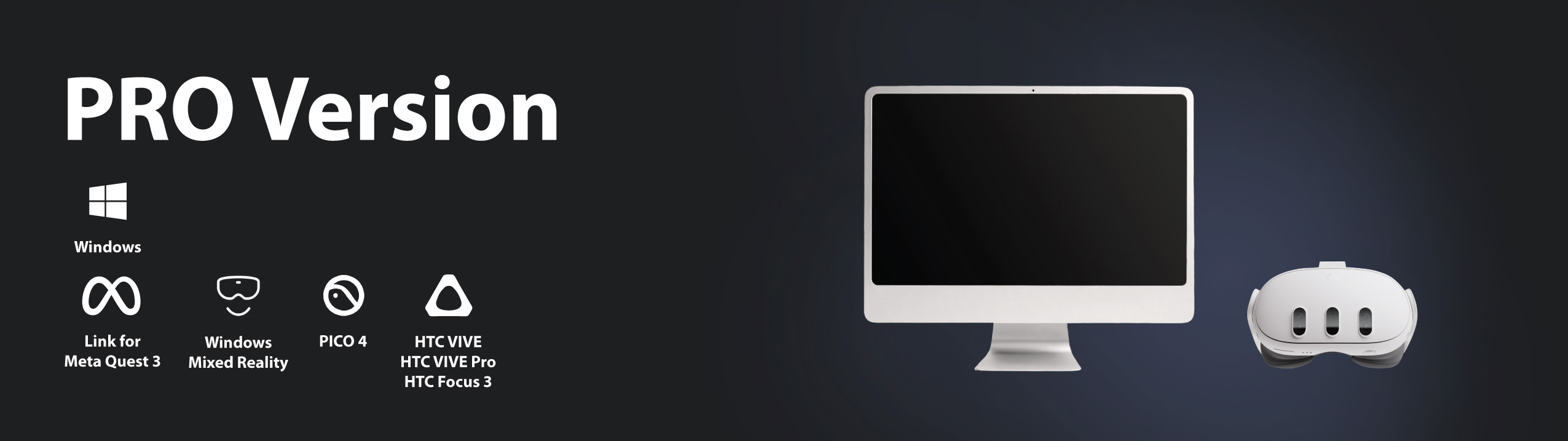
PRO Version
The PRO version offers the full range of features of CAD2VR® and is used on a Windows PC in connection with a VR headset.
To Get Started, You Will Need
Windows PC
- Windows 10 or Windows 11
- Internet connection (except when using the offline option)
- High-performance graphics card suitable for VR applications
- Sufficient storage space for your CAD projects
VR Headset
- CAD2VR® supports OpenXR-compatible PC VR headsets, for example:
- Meta Quest 3 (via Quest Link)
- PICO 4
- HTC VIVE
- Valve Index
- WMR (legacy, Windows 10 only)
CAD Data
- Supported standard formats:
- STEP
- GLB
- FBX
- OBJ
- Optional import formats:
- Datasmith (e.g. exported from SolidWorks, Revit, Navisworks, Archicad, ALLPLAN, Rhino)
- Point clouds (.pts, .xyz, .las, .laz)
Get Started in Just a Few Steps
Install CAD2VR® on your Windows PC.
Connect your VR headset to your Windows PC.
Import your CAD model into CAD2VR®.
Put on your VR headset and experience your model interactively.
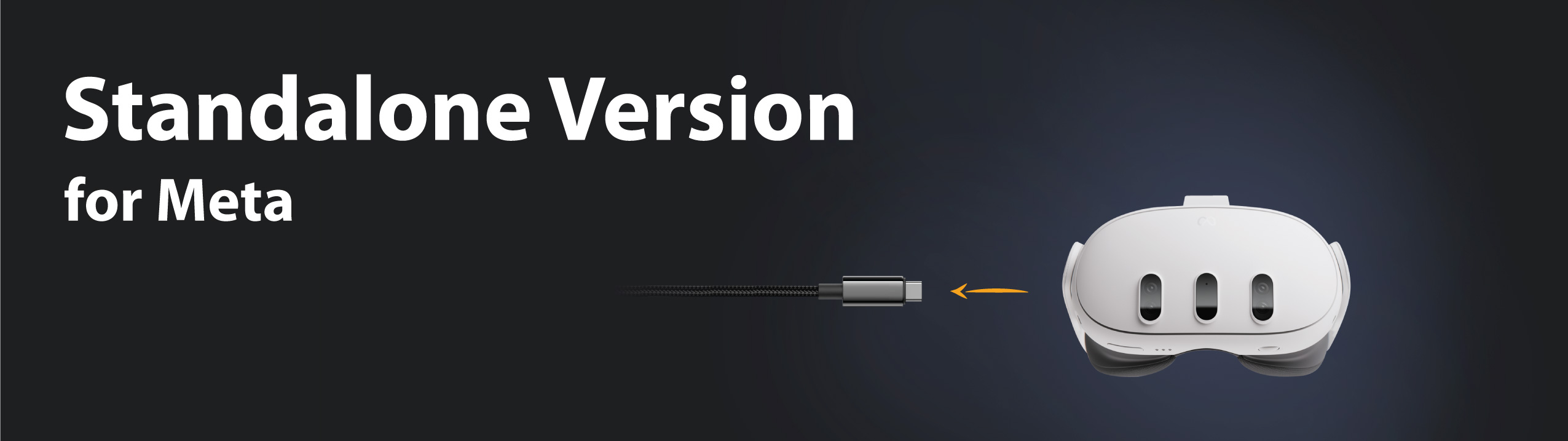
STANDALONE Version
The standalone version runs directly on the VR headset. No high-performance PC is required.
To Get Started, You Will Need
Meta Quest 3
- The standalone version has been specifically developed for Meta Quest 3 and runs entirely on the headset.
CAD Data
- Supported standard formats:
- STEP
- GLB
- FBX
- OBJ
- Optional import modules:
- Datasmith (e.g. exported from SolidWorks, Revit, Navisworks, Archicad, ALLPLAN, Rhino)
- Models are prepared once on a PC using the CAD2VR® Import version (included free with every standalone license) or an existing CAD2VR® PRO license.
Get Started in Just a Few Steps
Install CAD2VR® from the Meta Store.
Prepare your CAD model on your PC.
Transfer the data to your Meta Quest via USB or synchronize it using the CAD2VR® Cloud.
Put on your VR headset and experience your model interactively.

Would you like more information about CAD2VR®?
Would you like to arrange a presentation
in person or via video conference?
Please call us on 05401–856851–0
or send us a message.
Would you like more information about CAD2VR®?
Would you like to arrange a presentation
in person or via video conference?
Please call us on 05401–856851–0
or send us a message.