

CAD2VR® Troubleshooting
On this page, you will find solutions to the most common problems encountered during the installation and set-up of CAD2VR®.
We recommend that you carry out the suggested steps in the order given. If the problem persists, please contact our support team and provide as much detail as possible about your hardware, your VR headset and the version of CAD2VR® you are using.
Installation and Set-up
| Possible cause | Solution |
|---|---|
| Incorrect CAD2VR® version installed | Make sure that the installed CAD2VR® version is compatible with the VR headset you are using. |
| OpenXR runtime not configured correctly | Check whether the correct OpenXR runtime is selected. Example: For Meta devices, the Meta OpenXR Runtime must be set as the active runtime in the Meta Horizon Link app. |
| USB cable not compatible | Use a USB 3.x cable and test a different USB port. |
| USB power-saving options enabled | If necessary, disable the power-saving options for USB devices in the Windows Device Manager. |
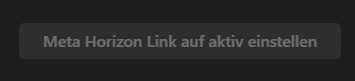
Problem: The ‘Set Meta Horizon Link to active’ button does not respond or remains greyed out.
- Launch the Meta Horizon Link app as an administrator.
- Use a Windows user account with administrator rights.
- Set the OpenXR runtime manually via the Windows Registry.
- Open the Registry Editor as an administrator.
- Navigate to the following key: HKEY_LOCAL_MACHINE\SOFTWARE\Khronos\OpenXR\1
- Set the ActiveRuntime value to the file: C:\Programme\Oculus\Support\oculus-runtime\oculus_openxr_64.json or C:\Programme\Meta Horizon\Support\oculus-runtime\oculus_openxr_64.json.
Note: Changes to the Windows Registry should only be made by experienced users.
- Reconnect the USB cable.
- Use a different USB 3.x port.
- Avoid using USB hubs.
- Make sure Air-Link is disabled.
- Confirm the Link connection in the VR headset again.
Start-up Problems
Performance
Operation

Would you like more information about CAD2VR®?
Would you like to arrange a presentation
in person or via video conference?
Please call us on 05401–856851–0
or send us a message.
Would you like more information about CAD2VR®?
Would you like to arrange a presentation
in person or via video conference?
Please call us on 05401–856851–0
or send us a message.